


One of the more common MySQL-related questions I get is how to transfer a database from one computer to another, or just how to recreate one in general. There are command-line tools that come with the MySQL server expressly for this purpose (mysqldump and mysqlimport). However, most people prefer to avoid using command-line tools, if they can. You can also use the GUI MySQL Administrator. This application has Backup and Restore options. (I write about the MySQL Administrator in my MySQL, Second Edition (Visual QuickStart Guide)
- Click Select All under Export to backup every table.
- Check Add DROP TABLE under SQL options > Structure so that the recreation of the database wipes out the existing database (note that you may not always want to do this).
- Check either zipped or gzipped under Save as file. This will automatically check the Save as file box for you.
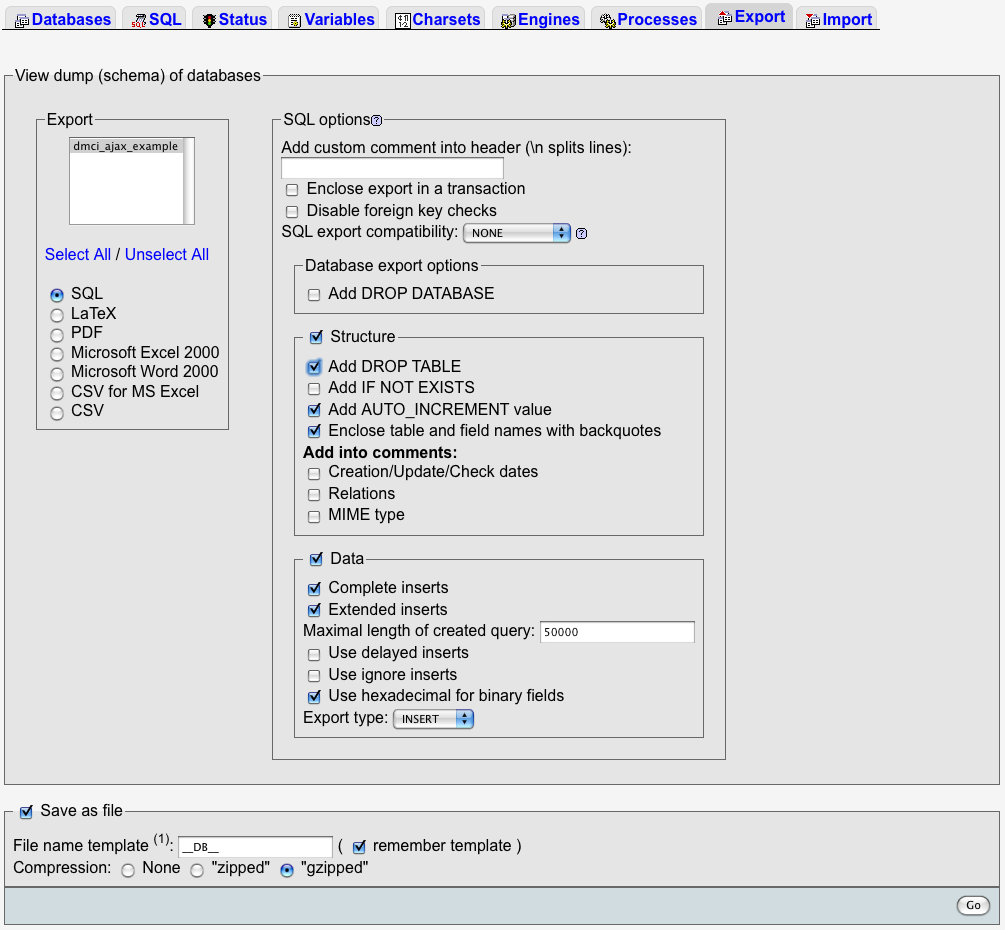 Once you’ve done this, click on Go. You’ll then be prompted to save the downloaded file to your computer, as you would any file downloaded through a browser. The result is a text file of the SQL commands used to recreate the entire database, from creating the tables to populating them. If you checked a compression type, it’ll be a compressed text file. You can now use this file as a saved backup of your database, edit the commands if needed, or remake the database from it. To do that…
Load the version of phpMyAdmin that’s running on the destination server, for example http://www.example.com/phpMyAdmin. This really must be running behind a restricted area (i.e., requiring authentication to access it), preferably over a secure connection. Then click on the Import link or tab, depending upon what options are presented. Then click the Browse button to select the database backup file (the one already created, now stored on your computer). Then click Go. That’s all there is to it!
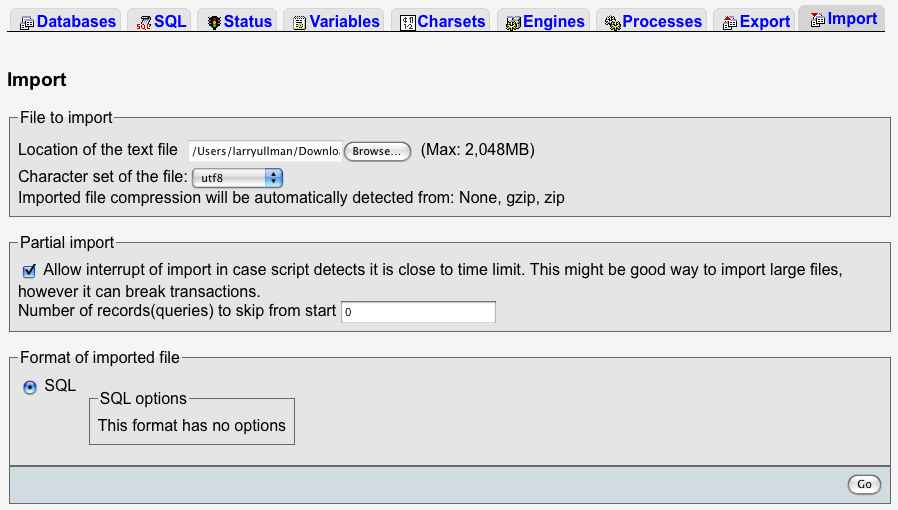 This works for me without fail probably 95% of the time. The biggest issue I run across is that the upload limit in the Import tab is 2MB. For large databases, like my forum, one text file—even compressed—is way too large. In such situations, I open up the SQL text file in a text editor, then copy and paste the commands into separate files until they are all under 2MB when compressed. At that point, it’s just a matter of doing multiple imports, one for each file.
As I said, I get asked about this a lot, but it’s really quite simple, thanks to phpMyAdmin. Let me know what questions or comments you may have!
