
Many, many moons ago I wrote
\[intlink id="473" type="post"\]a post introducing the Yii framework
\[/intlink\]. It’s a framework for creating Web applications using PHP 5 (or greater) that I’ve really liked since I originally started with it. Ruby on Rails was the first Web development framework I personally used (back in 2005) and Zend was the first PHP framework. I love the former, and Yii is quite like it in many ways, but I never really took to Zend. In that first post, I discussed just downloading and testing Yii; here I’ll walk through creating the beginnings of a Web application.
(Note: In October 2010, I’ve updated this entire series to reflect changes in Yii since this series was written, and to take into account feedback provided through the comments. Some outdated material will be crossed out, but left in to reflect how things have changed since the series was begun in June 2009.)
For the specific example, I’ll use an employees-departments Web application, with a list of departments and a list of employees, each employee being in only one department. This is a classic go-to example, as it’s easy to understand, practical, uses more than one database table, and is extensible in many ways. To start, though, you’ll use the command-line Yii tools to create the application’s frame. If you’ll be putting the site on a server that you do not have command-line access to, then you should install a complete Web server (Apache, PHP, MySQL, etc.) on your computer, run through these steps, then upload the finished project once you’ve completed it. If you don’t already have a Web server on your computer, I’d recommend using XAMPP (for Windows) or MAMP (for Mac), both of which are free and extremely easy to use.
The first thing you’ll need to do is make sure you have the latest version of the Yii framework. My first post discusses how to get it. Then you’ll want to put the framework folder in a logical location on the server. You don’t need to put it within the Web directory (arguably, you shouldn’t) but nearby, like in the directory below makes the most sense. For example, on my setup, the htdocs folder is the Web root, which is to say that http://www.example.com points there.
\[caption id="attachment\_572" align="aligncenter" width="300" caption="My directory structure."\] 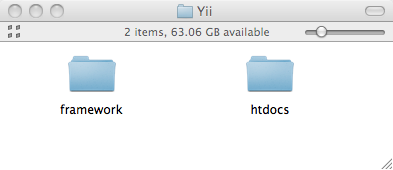
Tip: If you’re going to be using Yii for multiple sites on the same server, place the framework folder in a logical directory relative to every site. That way, when you update the framework, you’ll only need to replace the files in one place.
Next, you’ll need to get yourself into a command-line environment, like a DOS window/console on Windows or the Terminal application on Mac OS X (and some versions of Linux). Then move yourself into the framework directory. On my server, this means executing this line:
\[shell\]cd /Users/larryullman/Sites/YiiBlogSite/framework
\[/shell\]You’ll need to change the particulars to match your setup.
The next step is to tell the yiic application, found in the framework folder, to create a new site. The syntax is
\[shell\]yiic webapp path/to/directory
\[/shell\]But before you even begin to use this command, let me explain it a bit, as it’s very important and can be complicated. The yiic file is an executable that runs using the computer’s command-line PHP and that really just invokes the yiic.php script. You may be able to call it using just yiic or using ./yiic (i.e., run the yiic command found in the current directory). Or you can more explicitly call either script using php yiic or php yiic.php. Or you may need to indicate the PHP executable to be used: C:\php\php.exe yiic. You should try the variations on this command, as applicable to your computer, just to make sure you can invoke yiic, prior to trying to create the Web application.
Besides properly executing the yiic script, another gotcha can arise if you have more than one version of PHP installed on your computer. To confirm the version being used, run php -v (again, you may need to provide the full path to the PHP executable). On Mac OS X and Unix, you can use which php to reveal the PHP executable being used by the command php. These steps can help solve confusing problems. For example, on my Mac, I use MAMP Pro for PHP and MySQL Web development, but when I execute PHP through the command-line, I’ll actually be invoking the PHP installed with the operating system. This can be a problem, as the different versions of PHP may or may not meet the Yii requirements outlined in my first post. I know when I first tried this, the command-line PHP (installed with the OS) did not support the required PDO extension, even though the Web version of PHP (in MAMP Pro) did. My solution was to explicitly name my MAMP PHP executable when running yiic: /Applications/MAMP/bin/php5.3/bin/php yiic.
Once you know you’ve figured out the proper syntax for invoking yiic, you follow that by webapp, which is the command for “create a new Web application”. Follow this with the path to the Web application itself. Given the directory structure already indicated (in the above figure), the command would be just
\[shell\]./yiic webapp ../htdocs
\[/shell\]or
\[shell\]php yiic webapp ../htdocs
\[/shell\]Or whatever variation on that you need to use.
You’ll be prompted to confirm that you want create a Web application in the given directory. Enter Y (or Yes) and press Return. After lots of lines of responses, you should see a message saying that the application has successfully been created. To confirm this, load the site in your browser (by going through a URL, of course):
\[caption id="attachment\_1329" align="aligncenter" width="300" caption="The Auto-Generated, Basic Yii Application"\] 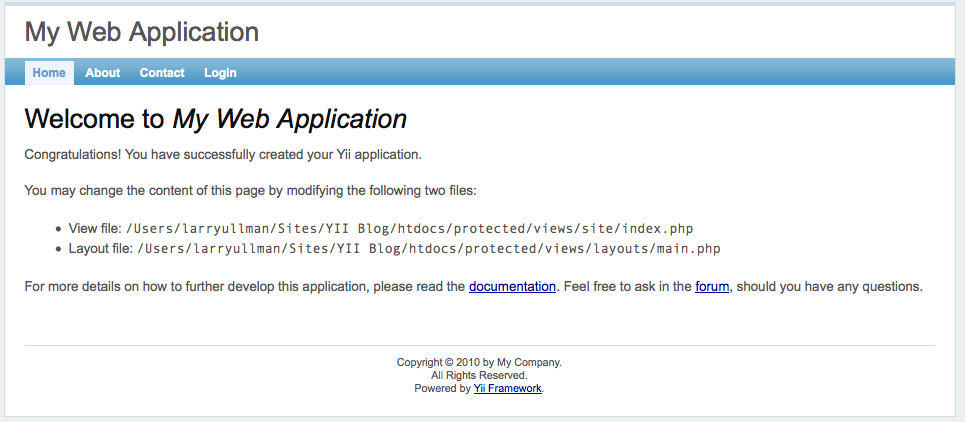
As for functionality, the generated application already includes:
- a home page with further instructions
- a contact form, complete with CAPTCHA
- a login form
- the ability to greet a logged-in user by name
- logout functionality
It’s a very nice start to an application, especially considering you haven’t written a line of code yet. Do note that the contact form will only work once you’ve edited the configuration to provide your email address. For the login, you can use either (username/password): demo/ demo or admin/ admin. Lastly, the exact look of the application may differ from one version of the Yii framework to another.
In terms of files on the server, within the application directory ( htdocs, for me), you’ll find:
- assets
- css
- images
- index-test.php
- index.php
- protected
- themes
The assets folder will be used by the Yii framework primarily for jQuery (the JavaScript framework) integration. The css and images folders are obvious. The entire site will also be run through one of the two index files (more on this in the next post). The protected folder is actually the most important one: you’ll edit code found in that folder to change the look and behavior of the site. And themes allows you to create variations on the site’s template, just like themes in a WordPress blog.
Tip: The assets folder must be writable by the Web server or else odd errors will occur. This shouldn’t be a problem unless you transfer a Yii site from one server to another and the permissions aren’t correct after the move.
So that’s the start of a Yii-based Web application. For every site you create using Yii, you’ll likely go through these steps. In the next post, I’ll start demonstrating how you can configure the application, and alter it for an employees-departments example.
As always, thanks for your interest in what I have to say and please let me know if you have any questions or comments.
Larry